July 29, 2026 · 7 min read
App Store screenshot rules: what's enforced, what's guidance, and what nobody publishes
Screenshot rules App Store Connect enforces at upload, the guidelines human reviewers apply, and Google Play's labelled tiers. Every rule cited.
Screenshot rules come from three different places, and they don't carry the same weight. App Store Connect checks a few things about the file itself before a human ever opens your listing. A reviewer then applies Apple's published App Review Guidelines, which are written in prose and read by a person. Google Play splits its own rules into two labelled tiers and tells you plainly which one can get you removed and which one only affects promotion.
Sorting them that way is more useful than a ranked list of "top rejection reasons," because neither store publishes how often screenshots get rejected or why. Every rule below is quoted from Apple or Google documentation, re-read on 15 August 2026.
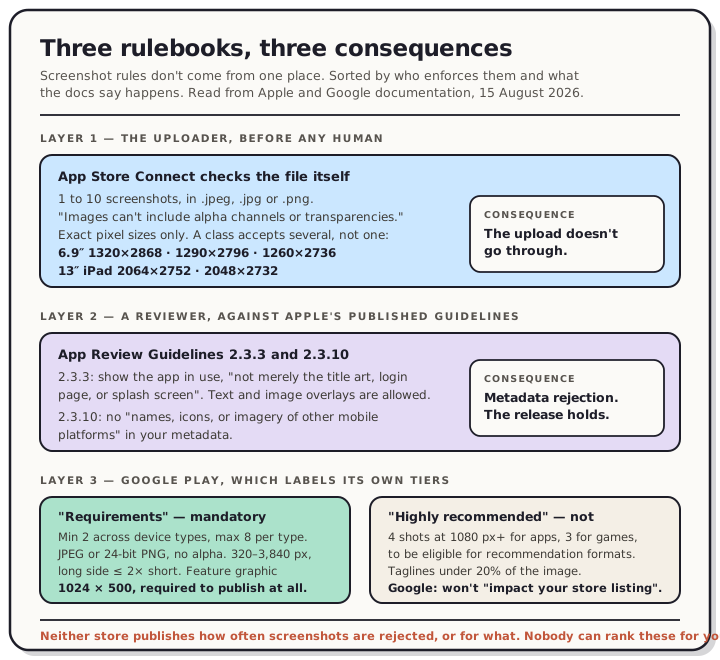
Read the chart description
Diagram separates upload validation, human review, and Google Play requirements from recommendations. The source-backed rules and consequences are structured in the article immediately below.
Layer 1: what the uploader checks on its own
These are mechanical. App Store Connect validates them on upload, so you find out immediately and no reviewer is involved.
Dimensions must exactly match an accepted size for the display class. The part worth correcting: a class accepts more than one size. The 6.9-inch iPhone class takes 1320 × 2868, 1290 × 2796 or 1260 × 2736 in portrait. The 13-inch iPad class takes 2064 × 2752 or 2048 × 2732. Designing at the largest is the sensible default because it survives Apple's downscaling best, but an existing set at any accepted size is fine as it is. The App Store screenshot sizes reference has every class in portrait and landscape.
Format is .jpeg, .jpg or .png, and the count is one to ten per display size, per localization.
No transparency. Apple's spec page puts it in a one-line note: images can't include alpha channels or transparencies. This is the one that catches people out, because an image can look completely opaque and still carry a fully-opaque alpha channel that the uploader rejects on sight. Design tools do this by default. Figma cannot export a PNG without an alpha value at all, and a simulator capture writes RGBA too. Flatten onto a solid background, or export JPEG, and the problem disappears.
Layer 2: what a human applies
Apple's App Review Guidelines are the second layer, and two clauses cover screenshots directly.
2.3.3 says screenshots should show the app in use, "not merely the title art, login page, or splash screen." The same clause explicitly allows text and image overlays. Marketing headlines and device frames around your capture are standard practice and compliant. A set that never shows real UI is the thing being ruled out. If you're adding headline text, size it for how small the store actually draws the image, which is a legibility problem well before it's a compliance one.
2.3.10 says not to include "names, icons, or imagery of other mobile platforms" in your app or metadata. An "Also on Google Play" badge or a Pixel-framed capture in an Apple listing sits against that clause. If you ship on both stores, keep two sets: Apple frames for the App Store, Android frames for Play. The wider 2.3 section covers accurate metadata generally, which is where showing unshipped features lands.
Layer 3: Google Play labels its own tiers
Play is the clearer of the two stores here, because its preview assets page marks every guideline as either a requirement or a recommendation and states the consequence of each.
Under Requirements, which Google says are mandatory and where failure "may result in removal or suspension from Google Play":
- A minimum of two screenshots across different device types to publish the listing, and up to eight per device type.
- JPEG or 24-bit PNG, no alpha. Note that Play wants the icon as 32-bit PNG with alpha, so the same store has opposite rules for two assets in the same dialog.
- Any dimension from 320 px to 3,840 px, with one catch: the longest side can't be more than twice the shortest. A raw 1080 × 2400 phone capture is outside that.
- A 1024 × 500 feature graphic, which is now required to publish a store listing at all rather than only when you have a preview video. Details in the feature graphic guide.
Under Highly recommended, where Google states that failure to comply "will not impact your store listing page" but may limit promotional opportunities:
- At least four screenshots at 1080 px or more for apps, or three for games, to be eligible for the Play surfaces that show apps in large screenshot formats.
- Taglines taking up no more than 20% of the image.
- No content suggesting Play ranking, awards, testimonials or promotions in the asset.
That last one is worth reading carefully. On the preview assets page it's a recommendation, not a requirement. The enforceable version lives in the Play Metadata policy, which prohibits misleading or inappropriate metadata "including but not limited to the app's description, developer name, title, icon, screenshots, and promotional images," and separately disallows unattributed or anonymous user testimonials in the app's description. So a misleading screenshot is a policy matter; a screenshot at 800 px is a promotion-eligibility matter. The Google Play sizes reference covers the numbers.
What we can't tell you
Neither Apple nor Google publishes screenshot rejection rates, or a breakdown of causes. We haven't submitted a deliberately non-compliant build to find out, and we're not going to guess at an order. Anyone presenting "the #1 reason screenshots get rejected" is presenting a hunch.
What you can rely on is the split above: layer 1 fails immediately and mechanically, layer 2 is a documented clause a person applies, and layer 3 is labelled by Google itself. Build to all three and the question stops mattering.
The pre-upload checklist
- Every file matches an accepted size for its class exactly. Any accepted size in the class works, not just the largest.
- No alpha channel. Flattened PNG or JPEG.
- Real app UI visible, with overlays and frames as you like.
- No other-platform devices, names or badges in the Apple set.
- Play set: two minimum across device types, long side no more than twice the short side, plus the 1024 × 500 feature graphic.
- Want Play's large-format placements? Four screenshots at 1080 px+ for an app, three for a game.
Working through a first release? The pre-launch listing checklist covers what else blocks publication, and the first three screenshots covers what Apple shows in search results.
Frequently asked questions
Can I use device frames and marketing text in App Store screenshots? Yes. Guideline 2.3.3 explicitly allows text and image overlays, and framing a capture in a device mockup is standard practice. The requirement is that genuine app UI is visible and the claims are accurate.
Why does App Store Connect reject a screenshot that looks the right size? Two usual causes. The pixel dimensions aren't an exact match for an accepted size in that class, which scaled exports cause easily. Or the file carries an alpha channel, which is invisible on screen. Check both, then re-export.
What's the most common reason screenshots get rejected? We don't know, and neither does anyone else outside Apple and Google. Neither store publishes rejection statistics for screenshots, so we won't rank the causes.
Do rejected screenshots reject the whole app? A metadata rejection holds the release until the listing is fixed. Because screenshots are metadata rather than binary content, correcting them doesn't require building and uploading a new binary.
Does a screenshot under 1080 px get rejected on Play? No. Anything from 320 px up meets Play's stated requirement, subject to the 2× rule. The 1080 px figure sits in Google's "highly recommended" tier, which affects eligibility for recommendation formats rather than whether the listing publishes.
The reliable way to stay inside layer 1 is to stop hand-managing dimensions at all. Open the editor, drop in your captures, and export sets that are store-exact; choose JPEG and there's no alpha channel to worry about either.