August 11, 2026 · 11 min read
App Store screenshots in Figma: the export is the hard part
Figma can't export a PNG without an alpha channel, and both stores forbid one in screenshots. What that means, plus the fix and the frame math.
Figma is a fine place to design store screenshots. The part that catches people is the export, and it fails quietly: Figma cannot write a PNG without an alpha channel, and both stores' published specs say screenshot uploads can't have one.
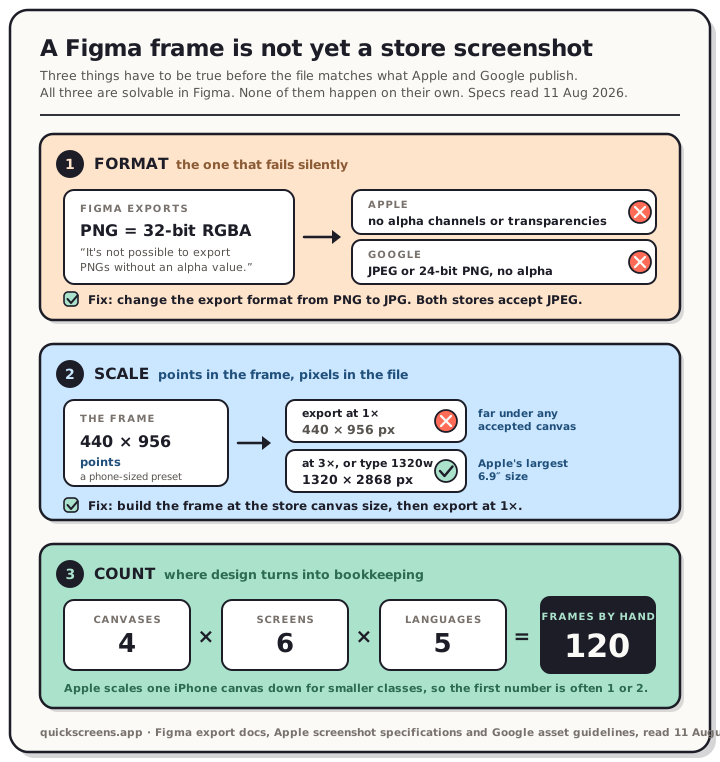
That's not our opinion. Figma's export documentation says it directly: "Figma supports 32-bit PNGs using the RGBA color model... It's not possible to export PNGs without an alpha value." Apple's screenshot specifications say "Images can't include alpha channels or transparencies." Google's asset spec lists screenshots as "JPEG or 24-bit PNG (no alpha)."
So the default path out of Figma produces a file that sits outside both specs, even when your design is completely opaque. The fix takes one click. You just have to know the click exists.
Below is the whole gap between a frame in Figma and a file the stores accept: format, scale, and the number of frames you end up maintaining. All three are solvable in Figma. None of them are automatic.
Read the chart description
A diagram of the three things that have to be true before a screenshot exported from Figma matches what the App Store and Google Play publish, with all specs read on 11 August 2026. Gate one, format: Figma's export documentation states it is not possible to export PNGs without an alpha value, so every PNG is 32-bit RGBA, while Apple's specification says images can't include alpha channels or transparencies and Google's says screenshots must be JPEG or 24-bit PNG with no alpha. The fix is to change the export format from PNG to JPG, which both stores accept. Gate two, scale: a Figma frame is measured in points and the export scale decides the pixels, so a 440 by 956 point frame exported at one times gives a 440 by 956 pixel file, far below any accepted canvas, while three times or a fixed width of 1320 gives 1320 by 2868 pixels, the largest size Apple accepts for 6.9 inch displays. The fix is to build the frame at the store canvas size and export at one times. Gate three, count: accepted canvases multiplied by screens in the set multiplied by languages gives the number of frames maintained by hand, so four canvases times six screens times five languages is 120 frames. Apple scales one iPhone canvas down for smaller display classes, so the canvas count is often one or two.
Use Figma if this sounds like you
Genuinely, first: there are good reasons to stay in Figma.
You already live there. Your product screens, your brand colors, your type scale and your components are already in the file, so building a screenshot set means reusing what exists rather than re-uploading it somewhere else.
You want unusual layouts. Angled device rows, hand-drawn annotations, a screenshot that bleeds into the next one across a three-panel spread. A dedicated tool has opinions about layout. Figma has none, and sometimes that's the whole point.
You need someone to review it. Comments, shared files and version history are real advantages when the screenshots have to get past a founder or a client.
And it costs nothing to try. Figma's free plan lists "unlimited drafts," which is enough to build and export a screenshot set without paying anyone.
The rest of this post is about the three places where store rules and design tools disagree.
Gate 1: the format
Figma's PNG export is 32-bit RGBA. Always. Their documentation is unambiguous about it, and it follows that the alpha channel is there whether or not anything in your design is transparent. A fully opaque screenshot comes out as an RGBA file with every pixel's alpha at 255. Invisible, and still in the file.
We've hit the same trap from the other direction. When we measured what adb screencap writes on Android, every one of 3,655,680 pixels came back at alpha 255 in an 8-bit RGBA PNG, and the Expo capture on iOS did the same thing. Capture tools and design tools both hand you a file with a channel the stores say shouldn't be there.
Here's what the two stores publish, read again on 11 August 2026:
| What the spec says | |
|---|---|
| Apple, screenshots | .jpeg, .jpg and .png accepted. "Images can't include alpha channels or transparencies." |
| Google, screenshots | "JPEG or 24-bit PNG (no alpha)." Also: "Don't include transparent backgrounds or masking." |
| Google, feature graphic | "JPEG or 24-bit PNG (no alpha)", 1024 × 500 |
| Google, app icon | "32-bit PNG (with alpha)", 512 × 512, under 1024 KB |
Look at that last row. Figma's PNG export is exactly wrong for a Play screenshot and exactly right for a Play icon, same store, same file dialog. That's the sort of thing you get wrong once and then repeat for a year.
One honest caveat. We have not tested an upload, so what we're saying is that the file falls outside the published spec, not that either store will reject it. Neither store publishes what its uploader actually enforces, and we're not going to guess. The spec is what they commit to, and building against it is cheaper than finding out where the real line is during a release.
The fix
In Figma's export panel, change the format from PNG to JPG. Both stores accept JPEG, and JPEG has no alpha channel to carry. That's the whole fix.
If you've already exported PNGs, check them before you upload. On macOS:
sips -g hasAlpha screenshot.png
file screenshot.png
hasAlpha: yes or 8-bit/color RGBA means the channel is there. To strip it without re-exporting:
magick screenshot.png -background white -alpha remove -alpha off -define png:color-type=2 clean.png
That writes a 24-bit RGB PNG, which is what Google's spec asks for. Or convert to JPEG and skip the argument entirely:
sips -s format jpeg screenshot.png --out screenshot.jpg
Run either one and sips -g hasAlpha comes back no.
Gate 2: the scale
A frame in Figma is measured in points. The export scale decides how many pixels come out. Those are two different numbers, and the store cares about the second one.
Figma's frame presets are grouped by device and asset type: Phone, Tablet, Desktop, Presentation, Watch, Paper, Social Media, Figma Community, Archive. There's no store-screenshot group in that list, which is reasonable, since a phone preset describes a screen and a store screenshot is a poster that happens to contain one.
Grab a phone preset, design in it, hit export at the default scale, and you get a file at the point dimensions. That's the same points-to-pixels gap we measured when we ran a blank Expo app on both platforms: iOS reported a 440 × 956 window at scale 3 and the capture came out at 1320 × 2868, which is the largest size Apple accepts for 6.9″ displays. The multiplier is doing all the work.
Figma's export field handles this, and it's more flexible than the dropdown suggests. Their docs describe three suffixes:
| You type | You get |
|---|---|
3x |
three times the frame's dimensions |
1320w |
a fixed width of 1320 px, height scaled to match |
2868h |
a fixed height of 2868 px, width scaled to match |
One more documented detail, because it trips people up: Figma exports at 72 DPI by default, and the DPI is 72 multiplied by the scale, so a 2× export is tagged 144. That number is metadata. Neither store reads it, and no amount of DPI makes an undersized file the right size. The pixel count is the whole test.
The simplest advice is to skip the arithmetic. Build the frame at the store canvas size, not at a device size. Make it 1320 × 2868 and export at 1×. Then the number in the frame, the number in the export and the number the store expects are the same number, and nobody has to remember a multiplier at 11pm on a release night. Every accepted canvas is on our App Store screenshot sizes reference and the Google Play screenshot sizes reference.
Gate 3: the count
This is the one that decides whether Figma stays comfortable, and it's plain arithmetic:
accepted canvases × screens in your set × languages = frames you maintain by hand.
The good news is that the first number is smaller than most people think. Apple's spec has a fallback rule at nearly every display class. The 6.5″ block is marked "Required if app runs on iPhone and screenshots for 6.9″ display aren't provided," and the 6.1″, 5.5″ and smaller classes all say "If screenshots with the accepted sizes aren't provided, scaled screenshots for [the larger class] are used." So one iPhone canvas covers iPhone.
| What you support | Canvases you actually need |
|---|---|
| iPhone only | 1 (6.9″, 1320 × 2868) |
| iPhone + iPad | 2 (add 13″, 2064 × 2752, "Required if app runs on iPad") |
| Both stores, phone only | 3 (add a Play phone canvas and the 1024 × 500 feature graphic) |
| Both stores, phone + tablet | 4 |
Now multiply. Six screens across four canvases is 24 frames. Add five languages and it's 120. Every one of them is a real frame in a real file, and every one has to be re-exported when you change a caption.
That's survivable with components and variants, and plenty of teams do exactly that. It's also the point where the work stops being design and starts being bookkeeping. The honest question isn't whether Figma can do it. It's whether you want to be the person maintaining 120 frames the week you ship.
Worth noting: Apple treats a new localization as a copy of your primary language's screenshots, so adding a language doesn't leave you with blanks. We measured what apps actually serve across six storefronts and found the difference is usually the caption alone, which is exactly the part that multiplies fastest.
Where a dedicated tool differs
Three things, and they map onto the three gates.
The canvas list is the store's list. Presets are store canvases rather than device screens, so the frame is already 1320 × 2868 and there's no multiplier to remember.
The export writes exact store sizes. Pick JPEG and there's no alpha channel to strip. The ZIP is sorted by locale and size, ready to drag into either console (fastlane users flatten the size folders first).
Captions are data, not layers. One layout, one caption table, and the languages fan out at export time instead of becoming 120 frames.
What you give up is Figma's freedom. If your screenshot concept needs a layout nobody has built a control for, a design tool is the right call, and there's no shame in exporting JPGs from it.
Frequently asked questions
Can I export App Store screenshots from Figma? Yes. Design at the store's canvas size, export as JPG rather than PNG, and check the pixel dimensions against the store's accepted sizes before uploading. The JPG step matters because Figma's PNG export always carries an alpha channel and both stores' specs exclude one.
Why does Figma always add an alpha channel to PNGs? Because Figma's PNG export uses 32-bit RGBA. Their documentation states that "it's not possible to export PNGs without an alpha value." Transparency is the point of PNG in most design work, so it's a sensible default that happens to collide with store rules.
Will Apple or Google reject a PNG with an alpha channel? We don't know, and we won't guess. Both publish specs that exclude alpha in screenshots, and that's what we can verify. We haven't tested an upload, so treat this as a spec question rather than a rejection prediction.
What size should my Figma frame be for App Store screenshots? 1320 × 2868 covers iPhone, because Apple scales it down for smaller display classes when you don't provide those sizes. Add 2064 × 2752 if your app runs on iPad. The full size reference lists every accepted option.
Does exporting at 2x or 3x change the store canvas?
It changes the pixel dimensions, which is what the store measures. A 440 × 956 frame at 3× exports at 1320 × 2868. You can also type 1320w in the export scale field to fix the width directly.
Is Figma's free plan enough for this? For building and exporting a screenshot set, yes. Figma's pricing page lists unlimited drafts on the free plan. The cost of the Figma route is time rather than money.
Can I use a Figma community template? You can, but check the frame dimensions before you build on one. A template is built at whatever sizes were current when it was made, and Apple's accepted list has changed since. Set the frame to the canvas you need rather than trusting the one you inherited.
None of this makes Figma the wrong tool. It makes the export a checklist: JPG not PNG, store canvas not device canvas, and a count you should do before you commit to a workflow.
If the checklist is the part you'd rather not own, that's what the QuickScreens editor is for. Store canvases as presets, exports that are already the right format, and captions that fan out across languages from one layout. One-time $25, no subscription.
Figma's export documentation and pricing page, Apple's screenshot specifications and Google's asset guidelines were all read on 11 August 2026. Commands in this post were run on macOS.